

Define a License Key Template
Defining a template in the Subscription Commerce Manager, allows you to:
- Use a generic template
- Insert placeholders that are replaced by purchase info
- Define multiple languages
- Use HTML
Set up a template
In the Subscription Commerce Manager:
- Go to Configure > Manage Product.
- From your product list, select the product for which you would like to create a license key template.
- In the Delivery tab, go to Key Template.
- Click the Dynamic Placeholder icon
</>to add the following placeholders:
| Placeholder | Description |
|---|---|
<Key> | License key |
<RegName> | Customer name |
<ProductId> | Product ID |
<InternalProductId> | Internal product ID |
<[NAME_OF_X_PARAM]> | Corresponding x-parameter |
<ProductName> | Name of the ordered product |
<Quantity> | Quantity of the ordered product |
<ProductTrialUrl> | URL to download a trial version of the product |
- Click Save and Complete.
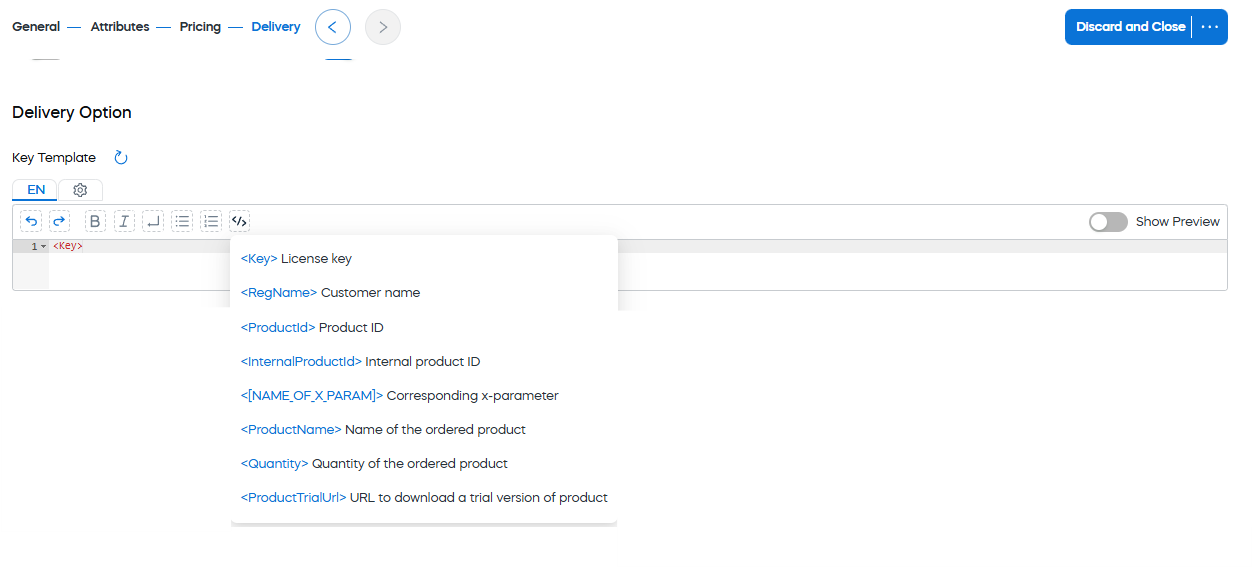
Add Dynamic Placeholder
Updated 2 months ago
Did this page help you?